Top 10 Ways to Avoid Glare on Glasses During Video Calls?

Time:2026-10-15 Author:Ethan
0%

Video calls can make clear lenses look like bright mirrors. A window behind the camera may create two white reflections across your eyes. Overhead bulbs can add smaller, distracting spots. These problems affect eye contact, facial expression, and the professional impression you make online.

The practical question is: How to avoid glare on glasses during a video call? Optometrist Dr. Justin Bazan offers a useful reminder: “Glare is often a lighting problem before it becomes an eyewear problem.” This principle shapes the ten methods in this guide. We will examine light placement, screen brightness, camera height, lens coatings, and simple room adjustments. You may need to move a lamp only a few inches. Sometimes, that small change works better than buying new glasses.

Begin with a quick test. Open your meeting camera, sit in your usual chair, and check both lenses from different angles. Notice reflections from windows, desk lamps, and the monitor itself. Clean lenses matter, too; fingerprints can scatter light and create a hazy shine. An anti-reflective coating may help, but it cannot fix poorly positioned lighting. Even careful setup has limits. Strong prescriptions, curved frames, or bright screens may still produce glare. That is worth acknowledging.

The goal is not a flawless studio. It is a calmer, clearer image that supports natural conversation. These practical adjustments can help you find that balance without making your workspace complicated.
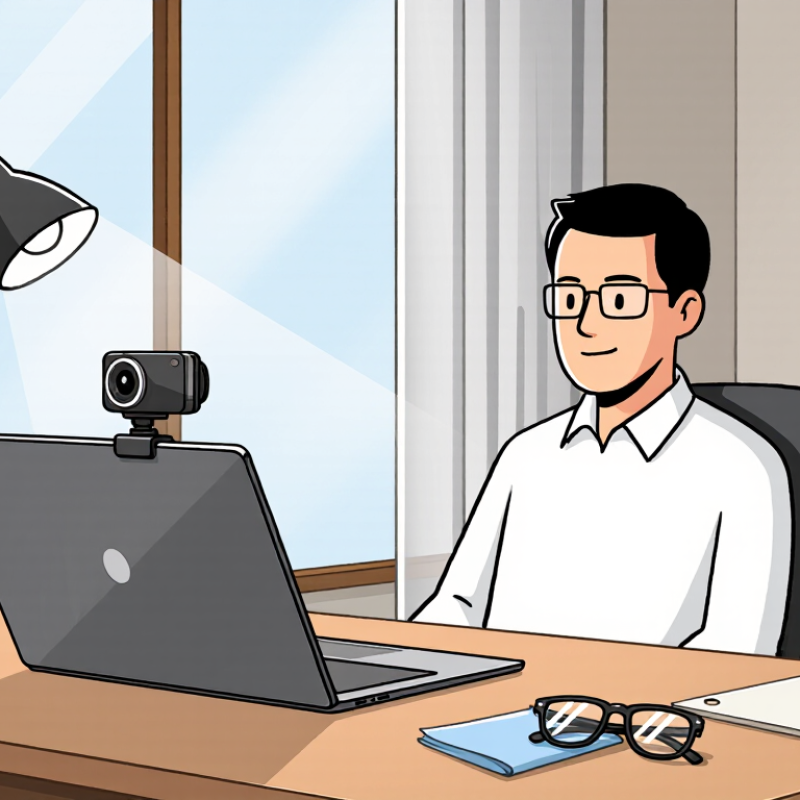
Top 10 Ways to Avoid Glare on Glasses During Video Calls?

Understanding Why Glare Appears on Glasses During Video Calls

Glare on glasses during video calls is usually a reflection problem, not a camera defect. Light from a window, ceiling lamp, or monitor can bounce off the lenses and reach the camera. Bright screens create square reflections, while overhead lights may form pale circles near your eyes. The angle matters. If your screen sits below your face, your lenses can reflect nearby light directly into the camera. Clean lenses also matter, because fingerprints scatter light and soften facial detail. In practice, moving one lamp a few inches can change the image noticeably. Still, no setup works perfectly in every room.

Tips: Place the main light slightly above eye level and about 45 degrees to one side. Avoid sitting directly in front of a bright window. Turn down nearby lamps, then adjust camera exposure carefully. A matte wall behind the camera can reduce harsh reflections. Tilt the screen or camera slightly, rather than lowering your head. If glare remains, adjust your glasses angle by a few degrees. Test with a short recording before an important call. Check both lenses at full screen size. Small reflections may look harmless in a preview but become distracting later.

Anti-reflective lenses may help, but they cannot remove every reflection. Lens shape, coating condition, room brightness, and camera position all influence the result. Some online advice oversimplifies this issue. A better method is a small, repeatable experiment: change one light source, record again, and compare. It takes patience.

Positioning Your Lighting to Reduce Reflections

Positioning your lighting correctly can reduce glare on glasses during video calls. Place the main light slightly above eye level and about 45 degrees to one side. This angle illuminates your face without sending light directly into your lenses. Keep the light in front of you, not behind you. A window works well when it faces you through a thin curtain. Direct sunlight is usually too harsh.

Watch the background, too. Bright lamps behind your head can create strong reflections and force your camera to adjust exposure. Move them farther away or switch them off. A second, softer light on the opposite side can reduce deep shadows. Keep it weaker than the main light. Your screen should not become the brightest object in the room. Lower its brightness if necessary.

I test the setup by moving my head slowly from side to side. Glare often appears only at certain angles. I used to place my light too low, which brightened my lenses and created distracting reflections. That mistake taught me to check the camera preview before every important call. Small changes matter. Clean lenses help, but they cannot fix poorly positioned lighting. Even a careful setup may need adjustment as daylight changes.

Adjusting Your Screen, Camera, and Seating Arrangement

Glare usually comes from a bright screen reflecting across the lens, not from the camera itself. During my own video calls, lowering screen brightness reduced the white haze around my eyes. Keep the display slightly below eye level, then angle it away from direct reflection. A dark interface can also reduce harsh light. Still, test it carefully. Dark screens may make your face look dull.

Place the camera near the screen’s center, but raise it slightly above your eyes. This reduces the chance of overhead lights appearing in your glasses. Move the camera farther away if your lenses catch a bright rectangular reflection. Increase room lighting gradually instead of relying on screen brightness. Clean both lenses with a soft, dry cloth before important calls. Small smudges scatter light.

Your seating arrangement matters just as much. Sit at a slight angle to windows, rather than facing them directly. Keep ceiling lamps behind or beside the camera, not above your glasses. Close blinds when afternoon sunlight reaches your desk. Leave a little space between your chair and the wall, which helps you reposition easily. I once moved everything perfectly, then leaned toward the screen and restored the glare. Comfort changes posture, so check your reflection after settling in. A short test recording often reveals problems that look invisible in the preview.

Choosing Anti-Reflective Lenses and Suitable Eyewear

Glare during a video call often comes from light bouncing off the front surface of lenses. Anti-reflective lenses reduce these reflections and keep your eyes more visible on camera. They also improve contrast in bright rooms. Ask an optician about the coating’s durability, cleaning instructions, and suitability for your prescription. A good coating helps, but it is not magic. Smudges can still create bright, distracting spots.

Suitable eyewear should fit securely without pressing your temples or sliding down your nose. Frames with a moderate lens size usually reflect less surrounding light than oversized styles. A slightly matte frame can also prevent small flashes near the lens edges. Choose clear prescription lenses when possible. Some tinted lenses may alter how your face appears on camera. Comfort matters.

Before a call, sit facing a soft lamp rather than a bare bulb. Keep windows slightly to one side. During a home-office test, I noticed glare after moving only a few inches. I had underestimated the effect of a ceiling light. Use your camera preview to check both lenses. If reflections remain, lower the light or raise the screen. Recheck after cleaning the lenses, because fingerprints can undo careful lighting adjustments.

Top 10 Ways to Avoid Glare on Glasses During Video Calls

Choosing anti-reflective lenses and suitable eyewear can significantly reduce visible reflections from room lights and screens.

Approximate total surface reflection at normal incidence. Uncoated values are calculated from the Fresnel equation using common lens refractive indices; anti-reflective performance varies by coating design and lens material.

10 Practical Ways to Reduce Glare

  1. Choose lenses with a high-quality anti-reflective coating.
  2. Position the main light source behind or beside the camera.
  3. Use a large, diffused light instead of a small bare bulb.
  4. Lower the brightness of nearby screens and monitors.
  5. Avoid sitting directly beneath ceiling lights.
  6. Keep bright windows outside the camera’s reflection path.
  7. Clean lenses regularly with a microfiber cloth.
  8. Select frames that keep the lenses slightly angled downward.
  9. Choose lenses with a moderate curvature when suitable for your prescription.
  10. Check the camera preview from your normal seated position before a call.

Anti-reflective lenses provide the largest eyewear-related improvement because they reduce the amount of light reflected from both lens surfaces. Lighting direction, screen brightness, lens cleanliness, and frame angle also affect how much glare appears on camera.

Testing and Fine-Tuning Your Setup Before the Call

Before the call, open your camera preview and sit exactly where you will speak. My first setup looked fine until I moved closer. A bright window appeared as two white rectangles in my lenses. Move the light source slightly above eye level, then shift it sideways by a few degrees. Small changes matter. Keep overhead lights from shining directly onto the glasses. If possible, close curtains and use softer, wider illumination.

Record a ten-second test while looking at the screen, turning your head, and leaning forward. Check the recording, not only the preview. Reflections can appear briefly during natural movement. Lowering the screen slightly may change the reflection angle, but it can create an unflattering view of your face. I still miss this detail sometimes. Adjust one element at a time, such as light height, monitor angle, or chair position. This makes the result easier to evaluate. Clean lenses also help, because fingerprints can scatter light and create hazy patches. Avoid judging the setup from one still frame. An optical technician would examine glare across different angles, and video testing should follow the same principle. If the lenses remain reflective, move the light farther away and raise its brightness gradually. Test again with your usual shirt, hairstyle, and background, since each can alter the apparent contrast around your glasses.

Top 10 Ways to Avoid Glare on Glasses During Video Calls? - Testing and Fine-Tuning Your Setup Before the Call

# Method What to Test Recommended Starting Point Typical Glare Reduction* Fine-Tuning Check Call-Ready Result
1 Move the main light off-axis Record a short preview while moving the light from directly in front of the face toward the left or right. 30–45° from the camera axis High Keep both eyes evenly lit and confirm that the frame does not show a bright reflection. Clear lenses with balanced facial lighting
2 Raise the light above eye level Compare reflections with the light at eye height and then slightly above the forehead. 10–20° above eye level High Tilt the light downward gently; avoid creating dark eye sockets or a bright forehead hotspot. Reflection moves below the visible lens area
3 Use a larger, softer light source Test a diffused lamp or window light against a small, uncovered point light. Large diffuse source near the camera side Medium–High Use diffusion that softens the source without making the image too dim or noisy. Broad, faint reflection instead of a sharp white spot
4 Increase the distance from the light Move the light farther away while maintaining similar brightness and compare the reflection size. About 1–2 m when space permits Medium Readjust brightness after moving the light; distance reduces intensity rapidly. Less concentrated reflection and steadier exposure
5 Reduce bright objects behind the camera Inspect windows, white walls, monitors, and uncovered lamps reflected in the lenses. Remove or dim the brightest nearby sources High Take a still frame from the actual camera position and review both lenses at full size. No distracting rectangular or circular reflections
6 Adjust the screen angle Tilt the display slightly backward or change its height while watching the lens reflection. Screen near eye level; small tilt changes Medium Keep the camera at eye level and avoid an angle that causes neck strain or distorted framing. Screen reflection is shifted away without awkward posture
7 Change your head position slightly Move a few centimeters left, right, up, or down while checking whether the glare disappears. Small position changes, not a full body turn Medium Mark the most comfortable position so you can return to it before the call. Natural posture with minimal lens reflection
8 Clean the lenses and camera lens Compare the image before and after removing fingerprints, dust, and oily film with a suitable lens cloth. Clean both surfaces before testing Low–Medium Check for haze around highlights; residue can spread light and make glare look worse. Sharper eyes and less scattered light
9 Control window and daylight direction Test with curtains open, partly closed, and fully closed while keeping face brightness consistent. Window to the side or behind the camera High Avoid direct sunlight on the lenses; use a secondary soft source if closing curtains makes the face too dark. Consistent exposure without sunlit lens spots
10 Run a final camera-preview test Record 10–15 seconds while speaking, looking down, and turning slightly from side to side. Test at the same time and location as the call Verification step Review the recording on a larger screen, then lock the final light, camera, and seating positions. Glare remains controlled during normal movement

*Glare-reduction ratings are practical comparative estimates, not laboratory measurements. Results vary with lens curvature, coatings, frame fit, room brightness, and camera angle.

FAQS

Why does glare appear on glasses during video calls?

Glare usually comes from reflected light, not a faulty camera. Windows, ceiling lamps, and screens can bounce light into the lens.

Where should the main light be placed?

Place it slightly above eye level and about 45 degrees to one side. Keep it in front of your face.

Should I sit directly in front of a bright window?

Avoid direct window light when possible. A thin curtain can soften daylight and reduce sharp reflections.

Can screen brightness cause visible glare?

Yes. A bright screen may create square reflections on your lenses. Lower its brightness if it becomes the room’s brightest object.

How can I reduce reflections from background lights?

Move bright lamps farther behind your head or switch them off. Background light can also confuse camera exposure.

Do clean lenses make a noticeable difference?

Yes. Fingerprints scatter light and soften facial detail. Clean both lenses before recording.

What should I do if glare appears only when I move?

Move your head slowly from side to side during a test. Then adjust the screen, camera, or glasses by a few degrees.

Can anti-reflective lenses remove all glare?

No. They may help, but lens shape, coating condition, room brightness, and camera position still matter.

What is a practical way to test my setup?

Change one light source, record a short clip, and compare both lenses at full screen size. It takes patience.

Is there a perfect lighting setup for every room?

Not really. Daylight changes, and small reflections may appear later. I still miss them sometimes, so check again before important calls.

Conclusion

Glare on glasses during video calls usually comes from light sources reflecting directly into the lenses, especially when a bright window, lamp, or screen is positioned in front of you. To understand how to avoid glare on glasses during a video call, start by placing lights slightly to the side and above eye level, using soft and evenly distributed illumination. Avoid sitting directly in front of windows or strong overhead lights, as these can create distracting reflections.

Your screen, camera, and seating position also matter. Keep the camera at eye level, adjust the screen angle, and move your chair until reflections are minimized. If glare remains a frequent problem, consider eyewear with anti-reflective lenses and frames that fit comfortably without tilting. Before an important call, test your setup using the camera preview, then fine-tune the lighting, lens angle, screen brightness, and seating distance. These small adjustments can make your face clearer and help you appear more professional on screen.

Ethan

Ethan

Ethan is a seasoned marketing professional with a deep expertise in our company's innovative product line. With a passion for sharing knowledge and insights, he takes the lead in regularly updating our corporate blog, where he explores industry trends, product features, and effective marketing......